
Veo 3 for YouTube: Complete Creator Guide (2026) — B-roll, Intros & More
How YouTube creators use Google Veo 3 to generate B-roll footage, channel intros, thumbnails, and video content. Complete guide for 2026.
Emma Chen · 8 min read · Apr 1, 2026
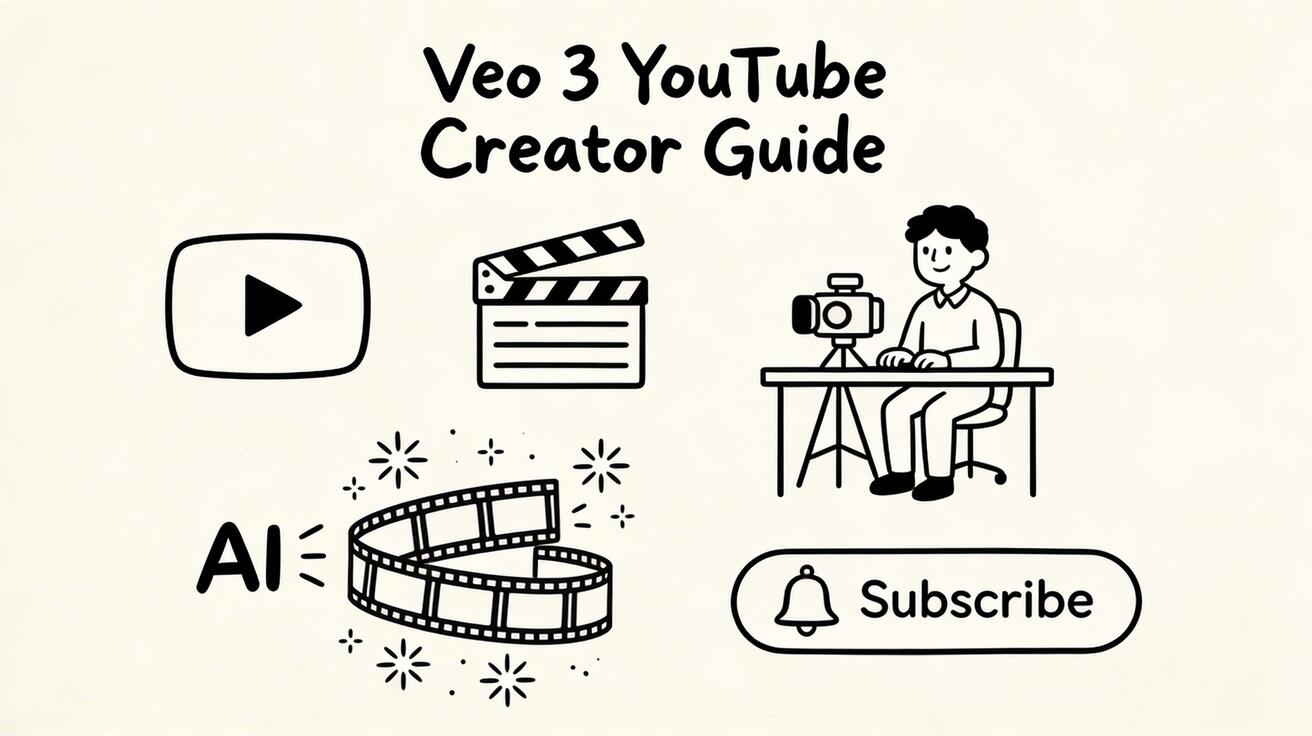
YouTube creators in 2026 face a relentless demand for high production quality. Viewers expect cinematic B-roll, dynamic intros, smooth transitions, and polished visuals — content that used to require expensive equipment and production crews.
Quick Answer: Google Veo 3 is Google DeepMind's flagship AI video generation model, delivering industry-leading cinematic quality, synchronized audio generation, and precise text-to-video control. It's accessible via Google Labs and Gemini, with free and paid tiers available to creators worldwide.
Google Veo 3 has become one of the most powerful tools in a modern YouTuber's toolkit. This guide covers exactly how to integrate Veo 3 into your YouTube workflow, from B-roll generation to channel intros.
Why YouTube Creators Are Adopting Veo 3
The Production Quality Problem
Solo creators and small channels can't match the production budgets of major YouTube studios. A single day of B-roll filming with a proper cinema camera, lighting, and operator costs $500-2,000. Licensing stock footage costs $30-150 per clip.
The Veo 3 Solution
Veo 3 generates cinematic B-roll, custom visual backgrounds, and dynamic scenes in 30-60 seconds per clip at minimal cost. The output quality is indistinguishable from real footage for most viewer purposes.
Key advantages for YouTubers:
- Custom B-roll: Generate exactly the scene you need, not a compromise from stock libraries
- Infinite library: Never run out of footage ideas
- Cost efficiency: $10-30/month vs. hundreds in stock licensing
- Speed: Generate what you need during editing, not on separate filming days
- Unique visuals: Your channel looks distinct from channels using the same stock footage
8 Ways YouTubers Use Veo 3
1. B-roll Footage
The primary use case. Replace or supplement your filmed footage with AI-generated B-roll.
When to use AI B-roll:
- Explaining concepts that are hard to film (historical events, scientific processes, abstract ideas)
- Showing locations you haven't been to
- Adding visual variety to talking-head sections
- Creating atmosphere for mood transitions
Veo 3 prompt examples for B-roll:
For a finance channel: "Close-up of hands counting banknotes on a desk, business professional setting, shallow depth of field, warm office lighting"
For a travel channel: "Aerial view of tropical island, turquoise water, white sand beaches, slow pullback drone shot, cinematic 4K"
For a science channel: "Abstract visualization of DNA double helix rotating, blue and white, futuristic lab aesthetic, slow rotation"
For a food channel: "Chef plating an elegant dish, professional kitchen, dramatic lighting, close-up artistry shot"
2. Channel Intros and Outros
A professional intro immediately signals production quality to viewers. Veo 3 generates dynamic, unique intro sequences.
Intro prompt framework: "[Channel aesthetic] intro sequence, [motion type], [color palette], [energy level], professional YouTube opener, [duration hint]"
Examples:
Tech channel: "Futuristic tech intro, circuit patterns dissolving into logo space, dark blue and cyan, high energy, 3-5 second opener"
Lifestyle channel: "Warm lifestyle channel opener, golden bokeh lights floating, elegant soft motion, 3-5 seconds, Instagram aesthetic"
Gaming channel: "Gaming channel intro, pixel art transforming into modern graphics, vibrant neon, energetic, 3-5 second opener"
Documentary channel: "Cinematic documentary opener, world map with light spreading, dramatic orchestral feeling, 5 seconds"
3. Title Cards and Section Transitions
Between sections of longer videos, short AI clips provide visual breathing room.
Transition prompt examples:
Topic change transition: "Abstract energy field dispersing and reforming, smooth transition, 2-3 seconds, clean and professional"
Location change: "Abstract space travel through stars, smooth hyperspeed effect, 2-3 seconds"
Time skip: "Sun moving across sky time-lapse, 2-3 seconds, smooth"
4. Background Visuals for Educational Content
For talking-head educational videos, relevant background visuals dramatically improve engagement:
History channel: "Ancient Roman forum, realistic but aged, cinematic atmosphere, slow pan"
Business channel: "Modern corporate meeting room, glass walls, city views, professional"
Psychology channel: "Abstract brain neuron network, glowing connections, dark background, scientific visualization"
5. Thumbnail Backgrounds
While Veo 3 generates video, individual frames from generated clips make excellent custom thumbnail backgrounds:
- Generate a relevant scene with Veo 3
- Pause on the most visually striking frame
- Screenshot/export that frame
- Use it as your thumbnail background in Canva or Photoshop
This gives you unique, custom thumbnail backgrounds instead of stock photos everyone else uses.
6. Live Stream Overlays and Looping Backgrounds
For live streams and recorded videos with ambient visuals:
Looping background prompts:
Focus/study stream: "Rainy window with city lights outside, dark cozy atmosphere, subtle loop, 10-second seamless"
Gaming: "Abstract neon grid floor extending to horizon, cyberpunk, looping animation"
Creative stream: "Soft abstract watercolor blending, gentle movement, artistic, looping"
7. Short-Form Content (YouTube Shorts)
Veo 3 is excellent for generating complete YouTube Shorts:
- Nature content: Stunning landscape clips (no need to travel)
- Abstract/satisfying: Oddly satisfying visual content
- Educational: Single-concept explainer visuals
- Inspirational: Cinematic mood pieces
8. Course and Tutorial Assets
For educational course creators:
- Concept visualization animations
- Process step illustrations in motion
- "Results" showcase videos
- Professional course intro sequences
Production Workflow Integration
Workflow A: Script-First (Recommended)
- Write script → identify every point where B-roll would enhance
- List B-roll needs → note exact scene descriptions
- Generate batch → create all needed clips in one session
- Edit → drop AI clips into timeline
- Review → check flow and replace any weak clips
Workflow B: Footage-First
- Film your main A-roll (interviews, demonstrations)
- Edit rough cut → identify gaps needing B-roll
- Generate targeted → create specific clips for each gap
- Final edit → integrate AI clips
Workflow C: AI-First (Advanced)
For channels doing high-volume content production:
- Topic ideation → select subjects from keyword research
- Scene breakdown → decompose video into visual sequences
- Batch generate → produce all clips with Veo 3
- Voiceover → record narration to AI visuals
- Publish → high volume, fast turnaround
Channel Niche Prompt Templates
Finance and Investing
"Stock market trading floor, multiple screens showing charts, busy professional atmosphere, cinematic"
"Gold bars and coins stacked, dramatic lighting, wealth concept"
"City financial district at night, lit office towers, wealth and power aesthetic"
Health and Wellness
"Morning yoga in studio, sunrise light, peaceful atmosphere, slow motion"
"Fresh vegetables and fruits arranged artfully, clean health aesthetic"
"Person meditating in nature, serene, soft natural light"
Technology and AI
"Abstract AI neural network visualization, glowing nodes, data flowing"
"Futuristic server farm, blue lighting, computing power concept"
"Holographic interface interaction, sci-fi but believable near-future aesthetic"
Travel and Adventure
"Aerial drone view of dramatic mountain landscape, golden hour, cinematic pullback"
"Busy international airport terminal, world traveler energy, wide shot"
"Night market in Southeast Asia, colorful lights, authentic street food vibes"
Gaming and Esports
"Gaming setup in dark room with RGB lighting, atmospheric"
"Abstract game world rendering, pixelated to high-res transition"
"Esports arena, crowd cheering, dramatic stage lighting"
Quality Tips for YouTube-Specific Use
Match Footage Color Grade
Your filmed A-roll will have a specific color profile. To blend AI B-roll seamlessly:
- Apply consistent color grade to both in editing
- Reference your main footage's look in the prompt: "warm cinematic grade, slightly desaturated highlights"
- Post-process AI clips in DaVinci Resolve or Premiere to match
Frame Rate Consistency
Specify matching frame rates in prompts:
- "24fps cinematic look" for most YouTube content
- "60fps smooth" for sports and action content
- "Slow motion effect" for dramatic emphasis
Resolution Targeting
Veo 3 outputs at high resolution. For YouTube:
- 1080p minimum (standard)
- Export final video at 4K if your channel is set up for it
Audio Alignment
Veo 3 sometimes generates ambient audio with video. For YouTube use:
- Usually replace with your own audio in editing
- Veo 3's ambient sound can be useful for atmospheric B-roll if it matches
Disclosure: Should You Tell Viewers?
YouTube's current policy requires creators to disclose AI-generated content that could be mistaken for real footage in realistic/documentary contexts (news, public events).
For:
- Abstract visuals → no disclosure required
- Stylized/obvious AI aesthetic → no disclosure required
- Realistic footage substituting for real events → disclosure recommended
Add a brief note in description: "B-roll footage partially generated with AI tools."
FAQ
Can I monetize YouTube videos with Veo 3 B-roll?
Yes. Using AI-generated B-roll in monetized YouTube videos is permitted. Follow YouTube's AI disclosure policy for realistic content.
Will YouTube's algorithm penalize AI-generated content?
YouTube's algorithm optimizes for watch time and engagement, not video production method. High-quality, engaging content performs well regardless of how it was produced.
How many B-roll clips do I need per video?
For a 10-minute video: typically 15-30 B-roll clips (each 3-8 seconds). Veo 3 can generate all of these in under an hour.
Can I use Veo 3 for my entire video or just B-roll?
Technically yes — some channels do fully AI-generated video content. However, the most successful approach combines human A-roll (interviews, face-cam) with AI B-roll for credibility and connection.
Is there a risk viewers will notice the AI content?
Modern Veo 3 output is highly realistic for most scene types. Nature, abstract, and urban scenes are virtually indistinguishable from real footage. Close-up human faces and complex multi-person interactions may show AI artifacts — avoid these for seamless integration.
Getting Started
- Identify your channel's top B-roll needs — what scenes do you constantly wish you had footage for?
- Generate 10 test clips using prompts from this guide
- Drop them into your next video and see how they integrate
- Refine your prompting style based on what works for your content
Start generating with Veo 3 (Free) →
Our Verdict
After reviewing the available options and capabilities for veo 3 youtube creators guide 2026, we recommend taking a hands-on approach: start with a free trial of the leading platforms, test with your actual use cases, and upgrade to the plan that best matches your volume and quality requirements. The AI tools in this space are advancing rapidly, making now an excellent time to integrate them into your content creation workflow.
Related Articles
Continue with more blog posts in the same locale.
Veo 3 Text to Video: Complete Guide to Google AI Video Generation (2026)
Comprehensive guide to using Veo 3 for text-to-video generation. Covers access, prompting framework, comparisons with Runway and Kling, limitations, and workflow optimization.
Read article
Veo 3 for Beginners: Complete Getting Started Guide 2026
Master Veo 3 AI video generation with our complete beginner guide. Learn step-by-step how to create your first videos, write better prompts, and avoid common mistakes.
Read article
Veo 3 for Marketing Teams: Create AI Video Ads That Convert
Discover how marketing teams use Veo 3 to create high-converting video ads 10x faster. Complete guide with ROI analysis, A/B testing strategies, and real use cases.
Read article