
Veo 3 Image to Video: Complete Guide to Animating Photos (2026)
Complete guide to Veo 3's image-to-video feature in 2026. How to animate any photo, best prompts, use cases, and tips to get cinematic results every time.
Emma Chen · 13 min read · Apr 2, 2026
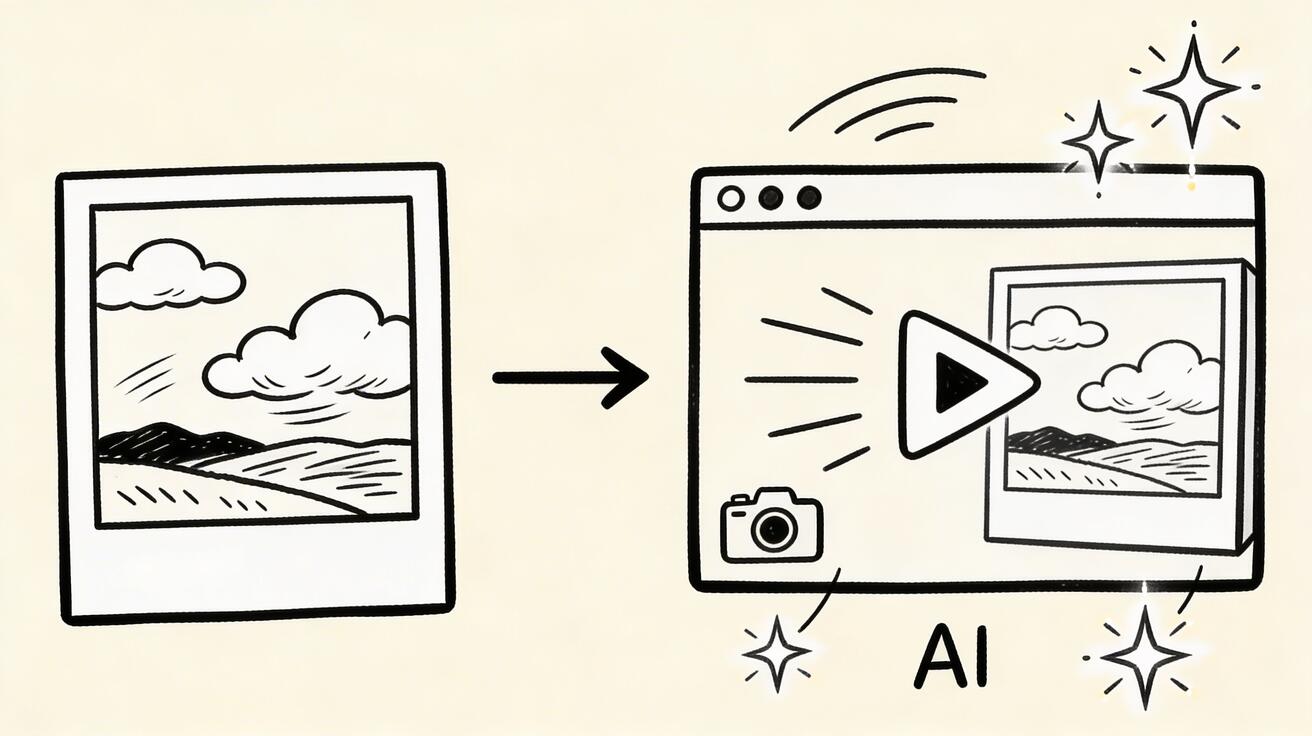
Veo 3's image-to-video capability is one of the most powerful and underutilized features of the platform. While most users focus on text-to-video generation, the ability to take any existing photo and transform it into a moving, cinematic video clip opens entirely different creative possibilities.
Quick Answer: AI image-to-video tools convert any still photo into a dynamic video clip using machine learning. Leading options in 2025 include Google Veo 3, Runway Gen-4, and Kling AI—each supporting text-guided motion, camera effects, and realistic animation from a single image.
This guide covers everything you need to know about Veo 3's image-to-video feature — what it does, how to get the best results, and the most valuable use cases.
What is Veo 3 Image-to-Video?
Image-to-video (I2V) takes a still image as input and generates a video clip that animates the scene — adding motion, depth, and atmosphere while preserving the essential visual content of the original photo.
The result isn't the original image with simple zoom applied. Veo 3 understands the depth, subject matter, and physical context of the image and generates realistic motion that makes the scene feel alive.
What You Can Animate
Virtually any photo can be animated, but some work better than others:
Works Excellently ✅
Landscape photography: Mountains, oceans, forests, skies — natural environments with inherent motion (waves, clouds, wind) animate beautifully
Architecture: Buildings with environmental context — sky, trees, people — come to life convincingly
Product photography: Products with appropriate background animate well for e-commerce and marketing use
Portrait photography: Subtle parallax motion and background animation creates cinematic portrait clips
Food photography: Subtle steam, condensation, or background movement elevates food content
Real estate photos: Interior and exterior property photos gain cinematic movement for listings
Works With Care ⚠️
Close-up faces: Subtle results are great; aggressive motion can produce artifacts
Complex crowd scenes: Multiple moving subjects can be inconsistent
Very dark or flat images: Limited depth information constrains the animation quality
Avoid ❌
Very low resolution images: Poor source quality limits output quality
Images with lots of small text: Text can distort during animation
Highly stylized/illustrated images: Real-world physics doesn't apply to illustrations cleanly
How to Use Veo 3 Image-to-Video
Step 1: Choose Your Image
Select a high-quality photo that has visual depth and potential for motion. The best sources:
- Your own photography
- Stock photos (public domain or licensed)
- Screenshots from other content (ensure usage rights)
Step 2: Prepare the Image
- Resolution: Minimum 1080p recommended; higher is better
- Format: JPEG or PNG
- Composition: Make sure the main subject is clear and centered or intentionally framed
Step 3: Upload to Veo 3
Navigate to veo3ai.io and select the image-to-video option. Upload your chosen photo.
Step 4: Add a Motion Prompt
The motion prompt tells Veo 3 how to animate the image. This is where most beginners underperform — they either add no prompt or use vague directions.
Weak prompt: "make it move" Strong prompt: "slow cinematic dolly forward, subtle atmospheric haze rising, leaves gently rustling in breeze"
Step 5: Generate and Evaluate
Generate the clip. If the result is good, download. If not, adjust your motion prompt and regenerate.
The Motion Prompt System
Motion prompts for image-to-video follow a specific pattern:
Camera Movement Vocabulary
Slow forward drift / dolly in: Creates a sense of entering the scene
"slow cinematic dolly forward into the scene"
Backward pullback / dolly out: Reveals the environment around the subject
"smooth backward pullback revealing the surrounding landscape"
Pan: Horizontal scanning movement
"slow pan left across the mountain range"
Tilt: Vertical camera movement
"slow upward tilt from foreground to sky"
Parallax float: Subtle depth-based movement (great for portraits)
"gentle parallax float, subtle depth separation"
Static with atmosphere: No camera movement, but atmospheric elements animate
"static camera, only atmospheric elements moving: clouds, light rays, mist"
Environmental Motion Vocabulary
Wind effects:
"gentle breeze rustling leaves and grass"
"strong wind moving through wheat field"
"hair and fabric moving naturally in wind"
Water effects:
"waves gently lapping at shore"
"subtle ripples on lake surface"
"waterfall mist rising"
"condensation running down glass"
Light effects:
"sun rays moving through clouds"
"volumetric light shifting"
"candlelight flickering"
"neon reflections shimmering in puddle"
Atmospheric effects:
"morning mist slowly rising"
"fog drifting through trees"
"smoke curling upward"
"snow falling gently"
"rain beginning to fall"
Sky animation:
"clouds slowly moving across sky"
"dramatic clouds building on horizon"
"aurora borealis shimmering"
"stars rotating subtly"
Use Cases by Industry
Real Estate & Property
The use case: Animate property listing photos to create more engaging virtual tours.
Before: Static photos in a gallery or slideshow After: Each photo gently animated, creating an immersive walkthrough feel
Prompts for real estate:
Exterior morning: "slow forward approach to front door, morning light warming facade"
Living room: "gentle parallax revealing room depth, soft light through windows shifting"
Garden: "breeze moving through plants, morning light dappling ground"
Pool area: "water surface rippling gently, reflections shimmering"
Impact: Properties with animated photo tours attract significantly more inquiry clicks than static galleries.
E-commerce & Product Photography
The use case: Bring product photography to life for higher engagement on social media and listings.
Prompts by product category:
Beverage/food: "condensation slowly forming on glass, steam rising from coffee"
Fashion/apparel: "fabric moving subtly in gentle breeze, natural drape"
Skincare/beauty: "liquid surface shimmering, droplets forming"
Jewelry: "subtle sparkle animation, light catching gemstone facets"
Technology: "ambient light shifting on product surface, screen glow pulsing"
Photography Portfolios
The use case: Animate your best still photography for portfolio websites, social media, and client presentations.
The cinematic portrait:
"gentle parallax float, background softly separating from subject,
subtle breath movement, bokeh gently shifting"
The landscape masterpiece:
"clouds slowly rolling, light shifting across valley,
long grass bending in wind, river surface shimmering"
The street photography scene:
"subtle movement in crowd, steam from grate rising,
rain beginning to mist, city life continuing"
Travel Content
The use case: Transform travel photos into cinematic destination content for social media and YouTube.
"Aerial city view": "camera slowly pulling back, cars moving below,
city lights twinkling to life as dusk approaches"

"Beach sunset": "waves gently rolling in, palm trees swaying,
golden light reflecting on wet sand"

"Mountain landscape": "clouds moving over peaks, snow catching light,
eagle circling in distance"
Wedding & Events
As covered in our events guide, photo animation transforms event photography:
Ceremony venue: "morning light moving through space, dust motes floating in shafts of light"
Reception table: "candles flickering, flower petals subtly moving in air conditioning"
Couple portrait: "gentle parallax, bokeh floating, atmospheric dreamlike quality"
Historical / Archival Photography
The use case: Bring historical photos to life for educational content, documentaries, and memorials.
For archival black-and-white photos:
"subtle period-appropriate atmospheric animation,
gentle grain movement, smoke or steam from era elements,
dignified and respectful motion"
Pro Tips for Better Image-to-Video Results
Tip 1: Match Motion to Subject Matter
Don't add aggressive camera movement to portraits. Don't use subtle parallax for ocean wave photos. Match the intensity and type of motion to what makes physical sense for the scene.
Tip 2: Limit Competing Motion Types
Specify 1-2 motion types, not 5. "Slow dolly in, leaves rustling, clouds moving, water rippling, light shifting" is too much competing instruction. Pick the 1-2 that matter most.
Tip 3: Add Atmosphere to Unlock Depth
Even if you don't want obvious motion, adding atmospheric elements creates subtle, beautiful animation: "subtle morning mist, light rays, otherwise still" — looks cinematic without obvious movement
Tip 4: Use High Quality Source Images
The quality ceiling for image-to-video is the source image quality. Start with the highest resolution, best-composed, best-lit photo available.
Tip 5: Think About the Beginning and End Frame
Veo 3 generates 5-8 seconds. Think about where the clip will start and end. "Beginning at wide shot, slowly drifting toward horizon" tells Veo 3 where to go.
Tip 6: Regenerate for Variety
Unlike text-to-video where prompts are your primary creative control, image-to-video benefits from regenerating the same image with the same prompt to get variation. Often the 2nd or 3rd generation is better than the first.
Combining I2V with Text-to-Video
The most powerful workflow combines both features:
- Text-to-video: Generate your primary atmospheric clips
- Image-to-video: Animate your key real photos for authenticity
- Edit together: AI-generated atmospherics + animated real photos = cinematic and authentic
This hybrid approach is used by professional content creators who need both scale (text-to-video) and authenticity (real photos animated).
FAQ
Does image-to-video preserve the original photo exactly?
The video output is based on and consistent with the original photo but includes generated animation. The core visual content (composition, subjects, colors) is preserved, while motion and atmospheric elements are added.
Can I animate portraits of real people?
Yes. The typical application is subtle parallax and atmospheric motion — not changing the person's expression or creating movement that would misrepresent them. Use thoughtfully and consider consent for portraits of identifiable people.
How long are image-to-video clips?
Typically 5-8 seconds, same as text-to-video generation.
Can I use image-to-video on my smartphone photos?
Yes. Modern smartphone photos have more than enough resolution (12-48MP) for excellent image-to-video results.
Does image-to-video work with black-and-white photos?
Yes. Specify in your prompt that the image is black and white to help Veo 3 apply appropriate motion without attempting colorization: "black and white photograph, period-appropriate subtle animation, grain texture retained"
Start Animating
Your existing photo library contains thousands of potential video clips. Start with one of your best landscape or product photos.
Try Veo 3 Image-to-Video Free →
More resources:
How Veo 3 Fits Into a Complete AI Video Workflow
Understanding Veo 3's role in a broader content production workflow helps maximize its value.
The Tiered Quality Approach
Professional content creators increasingly use a tiered approach to AI video:
Tier 1 — Hero Content (Veo 3): Your monthly flagship pieces. Major campaign videos, brand centerpieces, investor pitch content. Veo 3's premium quality justifies saving your monthly credits for these high-stakes pieces.
Tier 2 — Regular Content (Seedance AI): Daily and weekly social media content, blog post headers, email campaign B-roll. Platforms like Seedance AI offer generous daily credits for consistent volume production.
Tier 3 — Supplemental Content (Kling, Hailuo): Specific use cases where specialized capabilities matter — human motion (Kling), high-speed iteration (Hailuo).
This tiered approach means you never run out of content capability while reserving Veo 3's free credits for maximum-impact pieces.
Integrating Veo 3 with Video Editing Software
Veo 3 generates clips that integrate seamlessly into standard editing workflows:
Compatible with all major editors:
- Adobe Premiere Pro: Import MP4 directly, full codec support
- DaVinci Resolve: Free version fully supports Veo 3 output
- Final Cut Pro: Native MP4 support
- CapCut: Mobile editing for social media post-production
Best practices for editing Veo 3 clips:
- Color grade for consistency when mixing with other footage sources
- Use Veo 3 clips as hero shots, supplemented with other content
- Apply subtle stabilization if slight camera movement appears
- Trim to remove any initial or final frames that are slightly less sharp
Veo 3 for Different Content Categories
Lifestyle and Brand Content: Veo 3 excels at creating aspirational scenes — morning routines, travel moments, product reveals in beautiful environments. The photorealistic quality makes lifestyle content generated by Veo 3 genuinely difficult to distinguish from professionally shot footage.
Educational and Explainer Content: Combine Veo 3's atmospheric and illustrative B-roll with talking-head or screen recording content to elevate educational videos. A well-placed Veo 3 clip can transform a simple explainer into a polished production.
News and Documentary Style: Veo 3's ability to generate realistic documentary-style footage — interview setups, B-roll of locations and activities, atmospheric establishing shots — makes it valuable for journalism-adjacent content.
Product Showcases: For products that benefit from lifestyle context, Veo 3 generates the aspirational environments that make the product feel desirable. A luxury watch surrounded by architecture, a coffee brand's product in a beautiful morning kitchen scene.
Veo 3 Prompt Engineering: Advanced Techniques
Moving beyond basic prompts to advanced Veo 3 prompt engineering unlocks significantly better results.
The Four-Layer Prompt Structure
Professional Veo 3 users structure prompts in four layers:
Layer 1 — Subject: Precisely describe what the main subject is, including appearance details, position, and any relevant context.
Layer 2 — Environment: Describe the setting in detail — location, time of day, weather, architectural style, ambient elements.
Layer 3 — Action and Motion: Describe what is happening and how things move — the subject's action, any camera movement, the pace and energy of the scene.
Layer 4 — Technical and Stylistic: Specify the cinematic style, lens characteristics, lighting quality, color palette, and mood.
Example applying all four layers: "A professional female chef in a white uniform (Subject) in a high-end modern kitchen at dusk, marble countertops, copper pots visible in background (Environment) carefully plating a colorful dish with tweezers, slow methodical movements (Action) shot in cinematic 4K, shallow depth of field with bokeh background, warm kitchen light, documentary style reminiscent of Chef's Table (Technical)"
Using References and Styles
Veo 3 understands and responds to references to real cinematography, photography, and artistic styles:
Film director references: "Wes Anderson symmetrical composition," "Christopher Nolan IMAX scale," "Wong Kar-wai saturated neon aesthetics"
Photography styles: "National Geographic nature photography," "Annie Leibovitz portrait lighting," "Steve McCurry travel documentary"
Time-of-day lighting: "golden hour," "blue hour," "harsh midday overhead light," "overcast soft diffused light," "dramatic backlight"
Lens effects: "anamorphic lens flares," "wide angle environmental distortion," "telephoto compression," "macro extreme close-up"
Prompts for Native Audio Generation
Veo 3's audio generation is activated by including sound descriptions in your prompt:
"A peaceful forest stream flowing over rocks, natural ambient sounds — water over stones, birds in distant trees, light breeze through leaves"
"A busy metropolitan intersection at rush hour — traffic noise, distant sirens, crowds of people, urban ambience"
"A jazz pianist performing in an intimate club, piano melody, soft brushed drum kit, muffled conversation and glasses clinking in background"
Specificity in audio descriptions, just like visual descriptions, produces more targeted and accurate sound generation.
Veo 3 Versus Competing Tools: Complete Comparison
For creators evaluating options, here is an honest comparison across key dimensions:
Quality Benchmark (2026)
| Dimension | Veo 3 | Kling 3.0 | Seedance 2.0 | Runway Gen-4 | Hailuo |
|---|---|---|---|---|---|
| Photorealism | ★★★★★ | ★★★★☆ | ★★★★☆ | ★★★★☆ | ★★★☆☆ |
| Human motion | ★★★★☆ | ★★★★★ | ★★★★☆ | ★★★★☆ | ★★★☆☆ |
| Audio generation | ★★★★★ | ✗ | ✗ | ✗ | ✗ |
| Text adherence | ★★★★★ | ★★★★☆ | ★★★★★ | ★★★★☆ | ★★★★☆ |
| Generation speed | ★★★☆☆ | ★★★★☆ | ★★★★☆ | ★★★☆☆ | ★★★★★ |
| Free tier volume | ★★☆☆☆ | ★★★☆☆ | ★★★★★ | ★☆☆☆☆ | ★★★☆☆ |
The Honest Assessment
Veo 3 wins on quality and is the only tool with native audio — but its free tier limitations mean it cannot be a sole production tool for high-volume creators. The optimal strategy for most professionals combines Veo 3 for premium pieces with a higher-volume tool like Seedance AI for regular content production.
FAQ: Advanced Veo 3 Questions
Can Veo 3 generate video longer than 8 seconds?
Currently, Veo 3 generates clips up to 8 seconds. For longer videos, generate multiple clips and edit them together. Some advanced features via Vertex AI allow extended generation for enterprise users.
Does Veo 3 support 4K output?
Veo 3 supports 4K (2160p) output through Google Flow and Vertex AI, though free tier access is typically limited to 1080p. The 4K capability is one of Veo 3's competitive advantages for professional broadcast and premium digital use cases.
How does Veo 3 handle non-English prompts?
Veo 3 processes prompts primarily in English, though it accepts other languages. For best results, write prompts in English even if your target audience is in another language — the visual output is language-independent.
What happens if my Veo 3 free credits run out?
Free credits for Google Flow reset monthly. If you run out before the reset, you can use Google AI Studio for API-based generation (separate credit pool), upgrade to a paid Flow plan, or use alternative platforms like Seedance AI for the remainder of the month.
Is Veo 3 appropriate for advertising and sponsored content?
Veo 3 is appropriate for advertising on paid plans with full commercial licensing. For the free tier, commercial use is restricted — review Google's current terms before using free-tier Veo 3 output in paid advertising campaigns. Paid plans explicitly include advertising and commercial use rights.
Our Verdict
After reviewing the available options and capabilities for veo 3 image to video complete guide 2026, we recommend taking a hands-on approach: start with a free trial of the leading platforms, test with your actual use cases, and upgrade to the plan that best matches your volume and quality requirements. The AI tools in this space are advancing rapidly, making now an excellent time to integrate them into your content creation workflow.
Related Articles
Continue with more blog posts in the same locale.
Veo 3 for Beginners: Complete Getting Started Guide 2026
Master Veo 3 AI video generation with our complete beginner guide. Learn step-by-step how to create your first videos, write better prompts, and avoid common mistakes.
Read article
Veo 3 Text to Video: Complete Guide to Google AI Video Generation (2026)
Comprehensive guide to using Veo 3 for text-to-video generation. Covers access, prompting framework, comparisons with Runway and Kling, limitations, and workflow optimization.
Read article
Veo 3 for Marketing Teams: Create AI Video Ads That Convert
Discover how marketing teams use Veo 3 to create high-converting video ads 10x faster. Complete guide with ROI analysis, A/B testing strategies, and real use cases.
Read article